A free email signature generator, and how to use it
A guide to my free email signature generator: pick a layout, fill in your details, copy the signature and paste it into Gmail, Outlook, Apple Mail or Yahoo Mail.
- email signature
- next.js
- tools
- how-to
At work we needed to update the email signature of everyone on the team, and people did not read their mail in the same place. Some used Gmail in the browser, others a desktop mail app. Each app keeps the signature in a different menu, and a signature that looks right in one app can break in another.
That looked like a good small project for Next.js. The tool in this post is not the one we used at work. It is a separate app that I wrote on its own, free, with no account and no payment. In this post I show how to use it, step by step, with screenshots, and what it cannot do yet.
You can try it here: miguelcolmenares.com/email-signature-generator.
What is under it
It is a Next.js app with the App Router, React 19, TypeScript and Tailwind CSS 4. The form controls come from React Aria Components, and Zod checks the values that the app reads back from your browser.
Everything you type stays in your browser, in localStorage. The app does not send it to a server. The page counts visits and speed with Vercel Analytics, and no event carries what you typed.
One more detail matters for how you use it. Mail apps ignore most modern CSS, so the signature is a set of tables with inline styles, and every image is an absolute https link. The app builds that HTML once. The preview on the right and the copy buttons use the same string, so what you see is what you paste.
The seven steps
The wizard has seven steps, and the preview stays on screen at every one. You can open any step from the list on the left, and you can change a choice at any time.
1. Shape
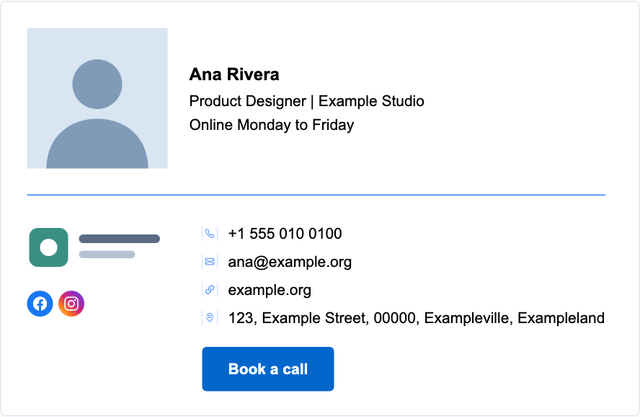
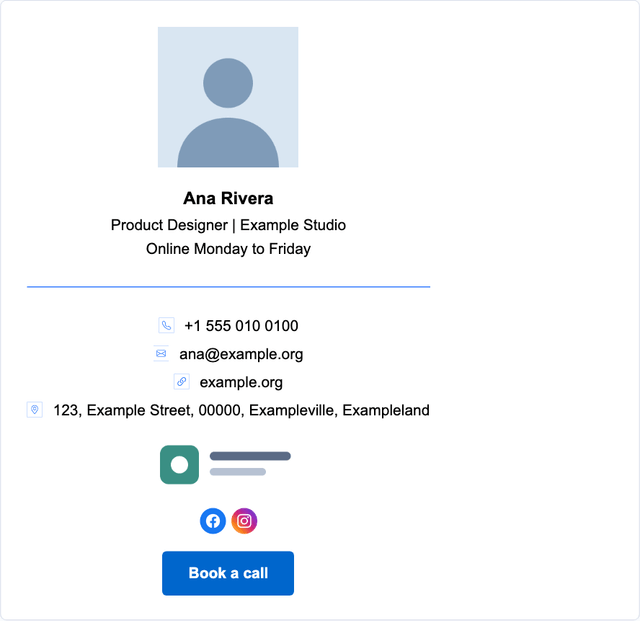
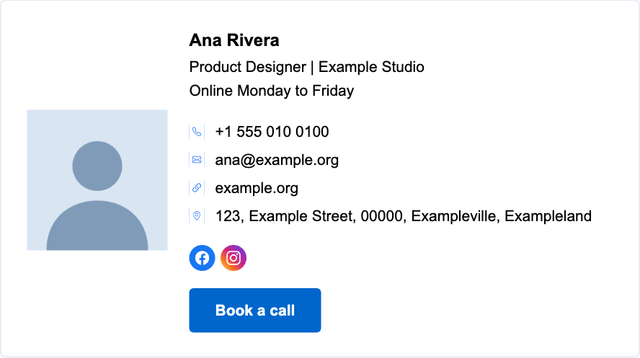
You start by picking a layout. There are six: Classic, Classic mirrored, Text only, Compact with the photo on the left, Compact with the photo on the right, and Centered.
Each card draws where the parts go, and says what the layout leaves out. Text only has no photo and no logo, and the Compact layouts have no logo. Pick by what you have: if you have no logo, a layout that leaves it out will not show an empty space.
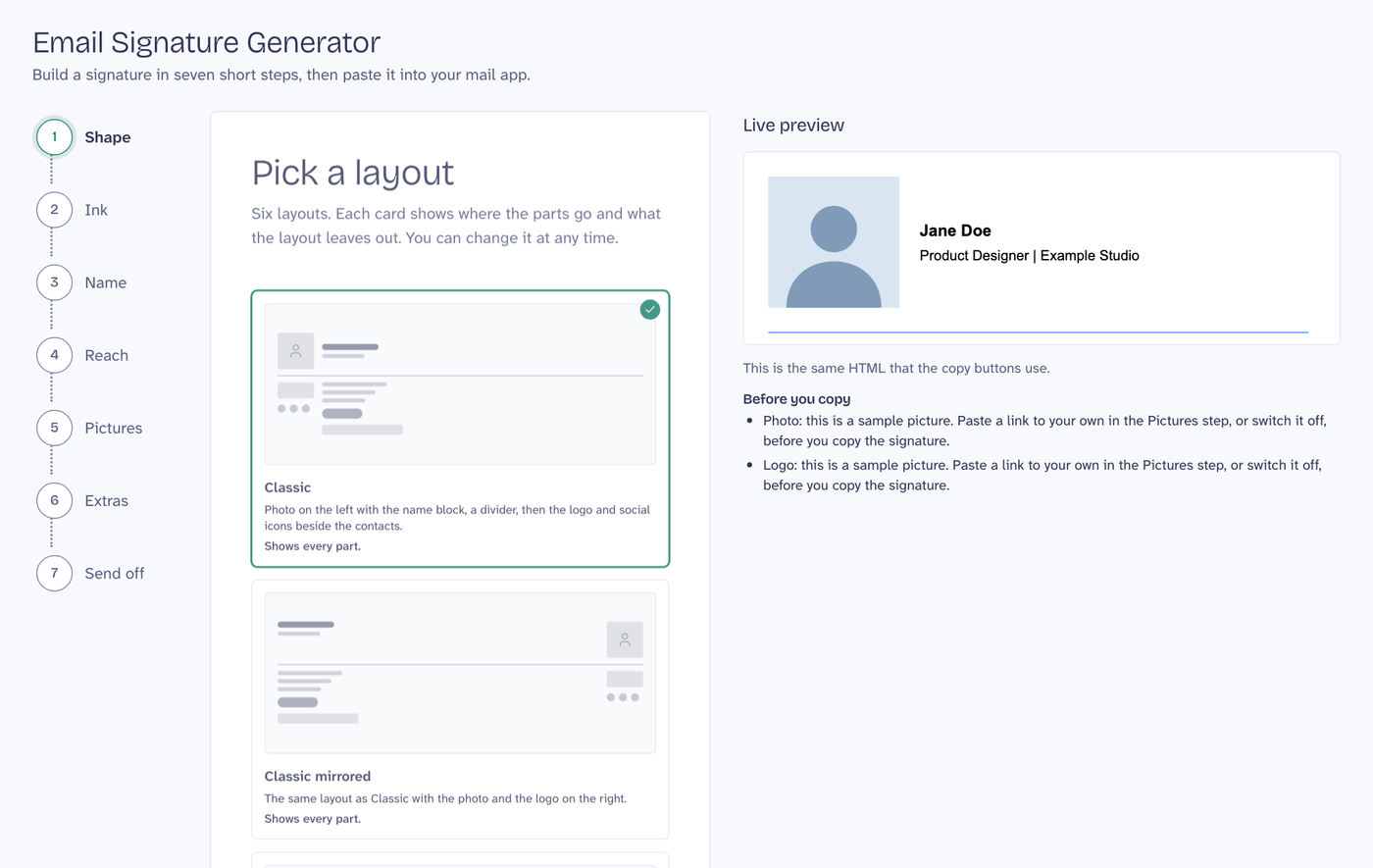
Here are three of the layouts with the same data:
2. Ink
This step sets the look. One color is for the divider and the icons, and one is for the text. Then you pick a font and a size.
The fonts are a short list that most mail apps already have: Arial, Courier New, Georgia, Lucida Sans Unicode, Tahoma, Times New Roman, Trebuchet MS and Verdana. A custom font would only work for people who have it installed, so the list stays short on purpose. The sizes are small, medium and large.
3. Name
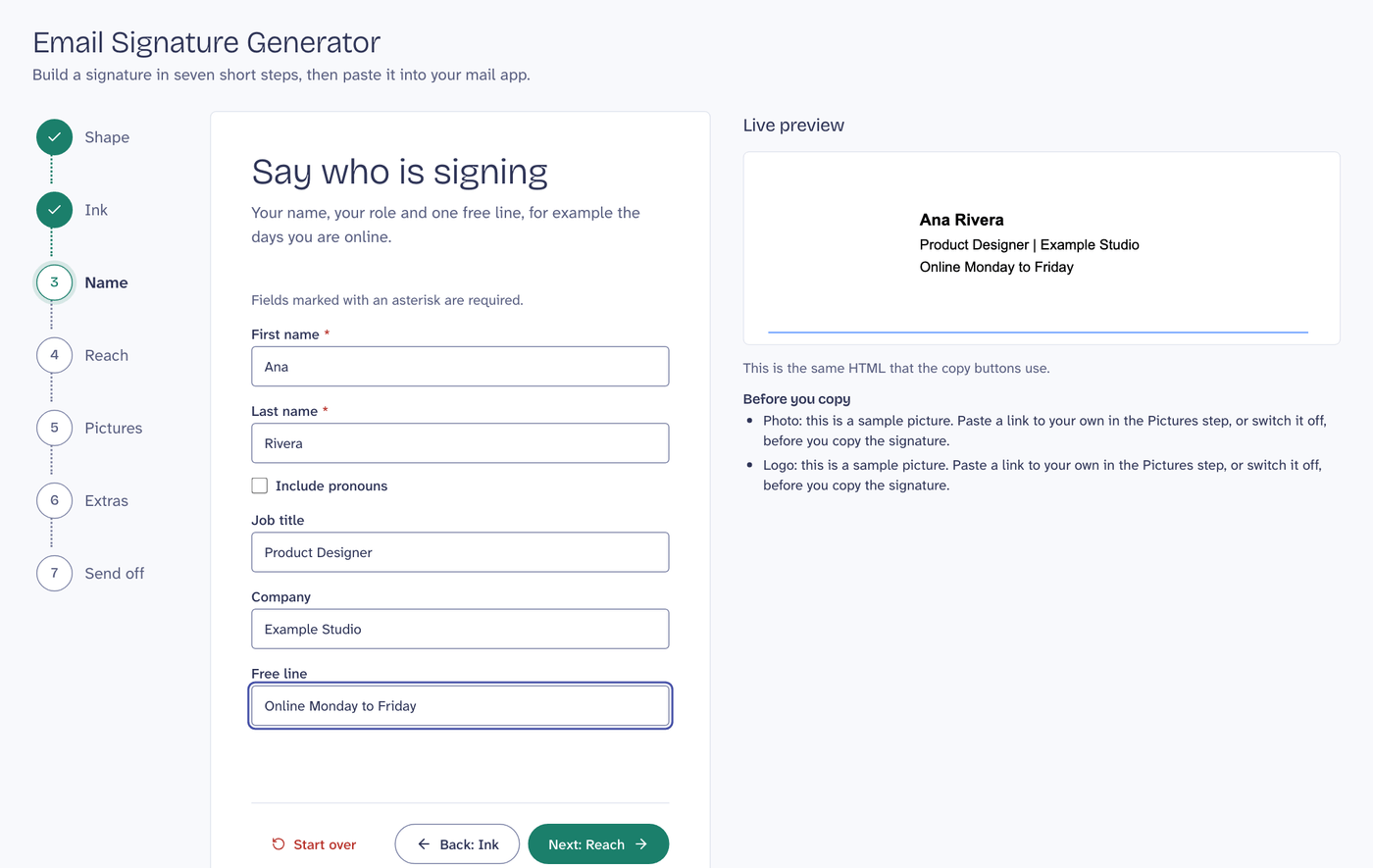
Here you write who is signing: first name, last name, job title, company and one free line. The free line is for something short, for example the days you are online. A switch adds pronouns after the name, and you choose which ones.
Fields marked with an asterisk are required. The rest can stay empty, and an empty field leaves no gap in the signature.
4. Reach
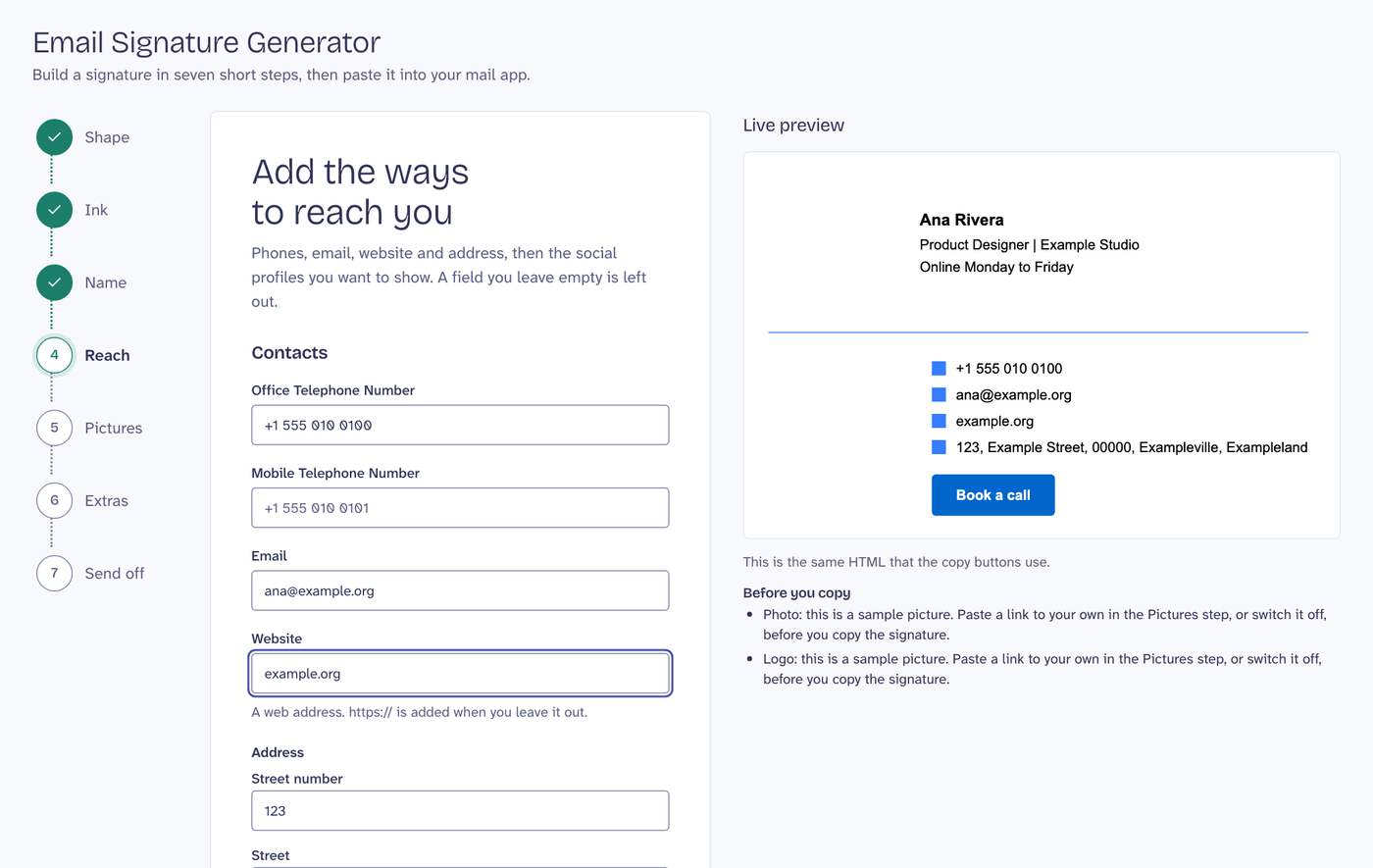
This step has the ways to contact you: two phone numbers, an email, a website and an address. Below them you add social profiles.
The social profiles come from a list of 12 networks: Facebook, Instagram, X, LinkedIn, YouTube, TikTok, GitHub, WhatsApp, Telegram, Pinterest, Threads and Bluesky. You choose a network, click Add, and paste the link to your profile. The icons can use the brand colors of each network, the same color as the contact icons, or one color that you pick.
Every link goes through a check. The app accepts https and http links and rejects anything else, such as javascript: or data:. A link that fails is left out of the signature, and the form says why under the field.
5. Pictures
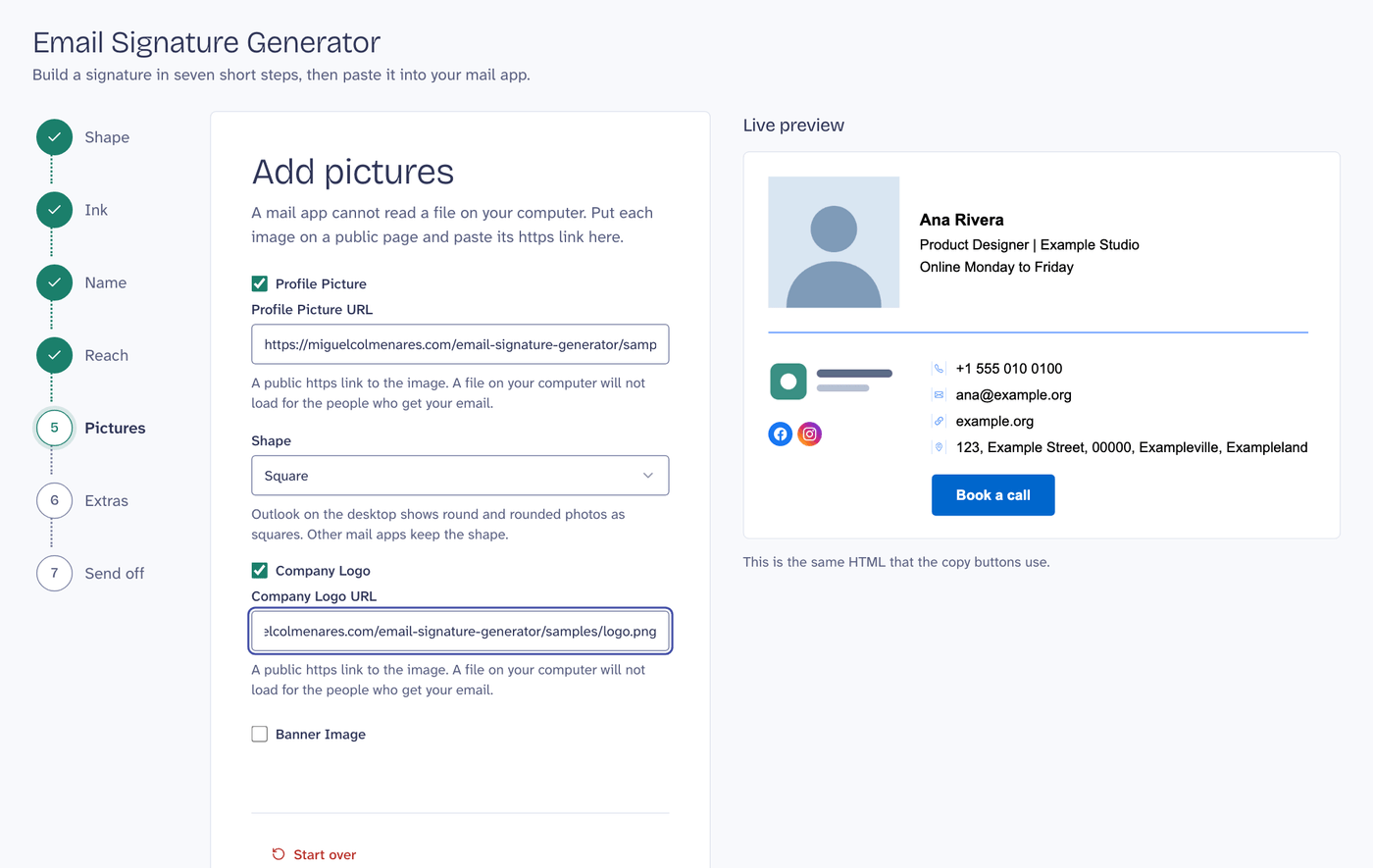
A mail app cannot read a file on your computer. So the app does not upload anything: you put the photo, the logo and an optional banner on a public page, and paste the https link of each image.
The photo can be a circle, a square or rounded. Outlook on the desktop shows round and rounded photos as squares, so if most of your readers use it, pick square.
A short list called "Before you copy" sits under the preview. It tells you what is still a sample, for example a photo that is not yours yet, so you do not copy the sample by mistake.
6. Extras
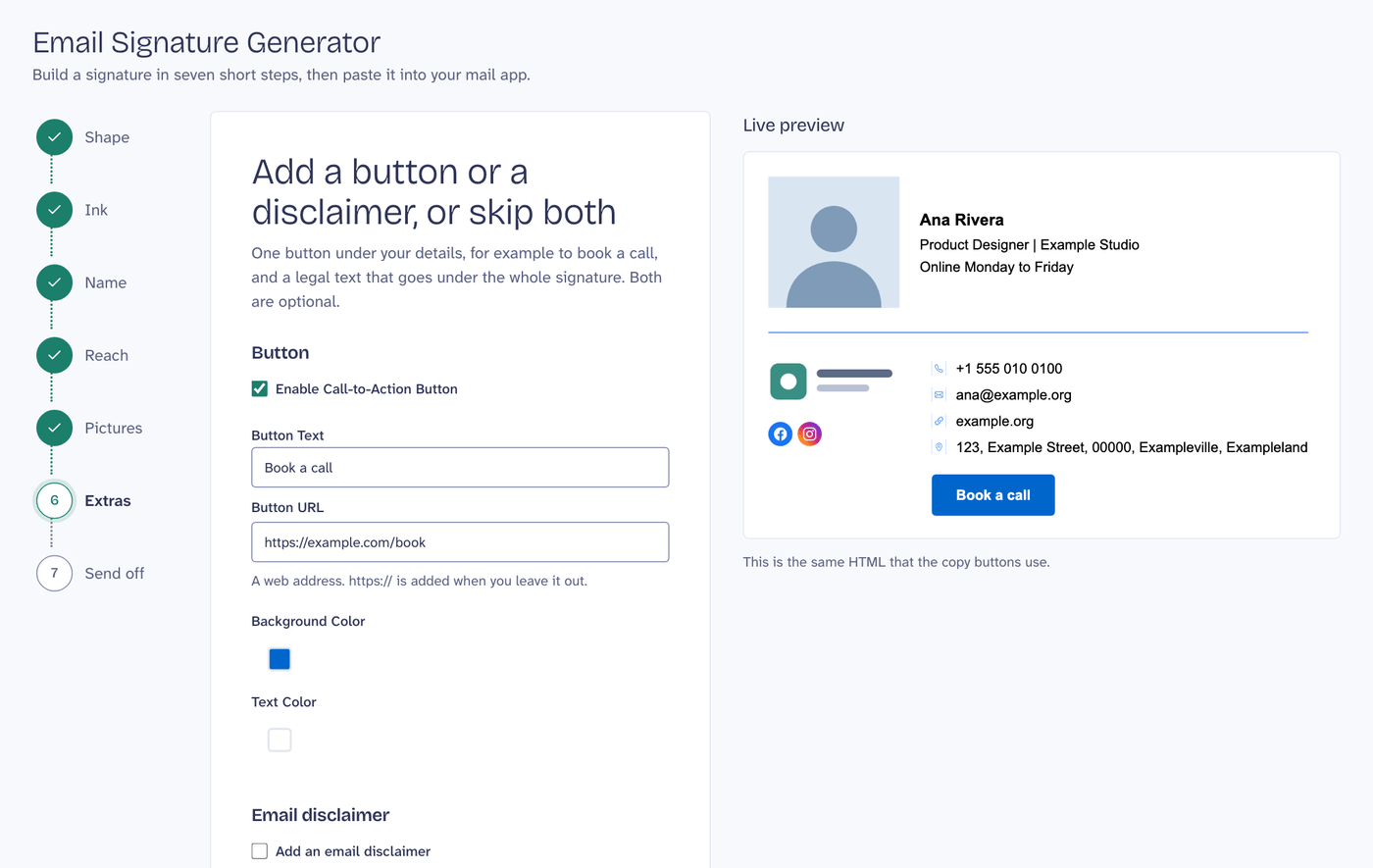
Two optional parts. The first is one button under your details, for example "Book a call". You set the text, the link and the two colors. The second is a legal text that goes under the whole signature, for companies that need a disclaimer on every email.
7. Send off
The last step gives you four buttons:
- Copy signature copies the signature with its layout. This is the one you paste into a mail app.
- Copy HTML source is for apps that ask for code.
- View source shows the HTML before you copy it.
- Download .html saves it as a file.
Under the buttons there is a guide for each app: Gmail, Outlook (on the web, in the new Outlook and in the classic one for Windows), Apple Mail and Yahoo Mail. Each guide has the steps and a link to the help page of the vendor.
For Gmail, in the browser, the steps are short. Open the settings with the gear icon and choose See all settings. On the General tab, scroll to Signature and click Create new. Give it a name, click in the box and paste. Then choose when to use it, and click Save changes at the bottom of the page.
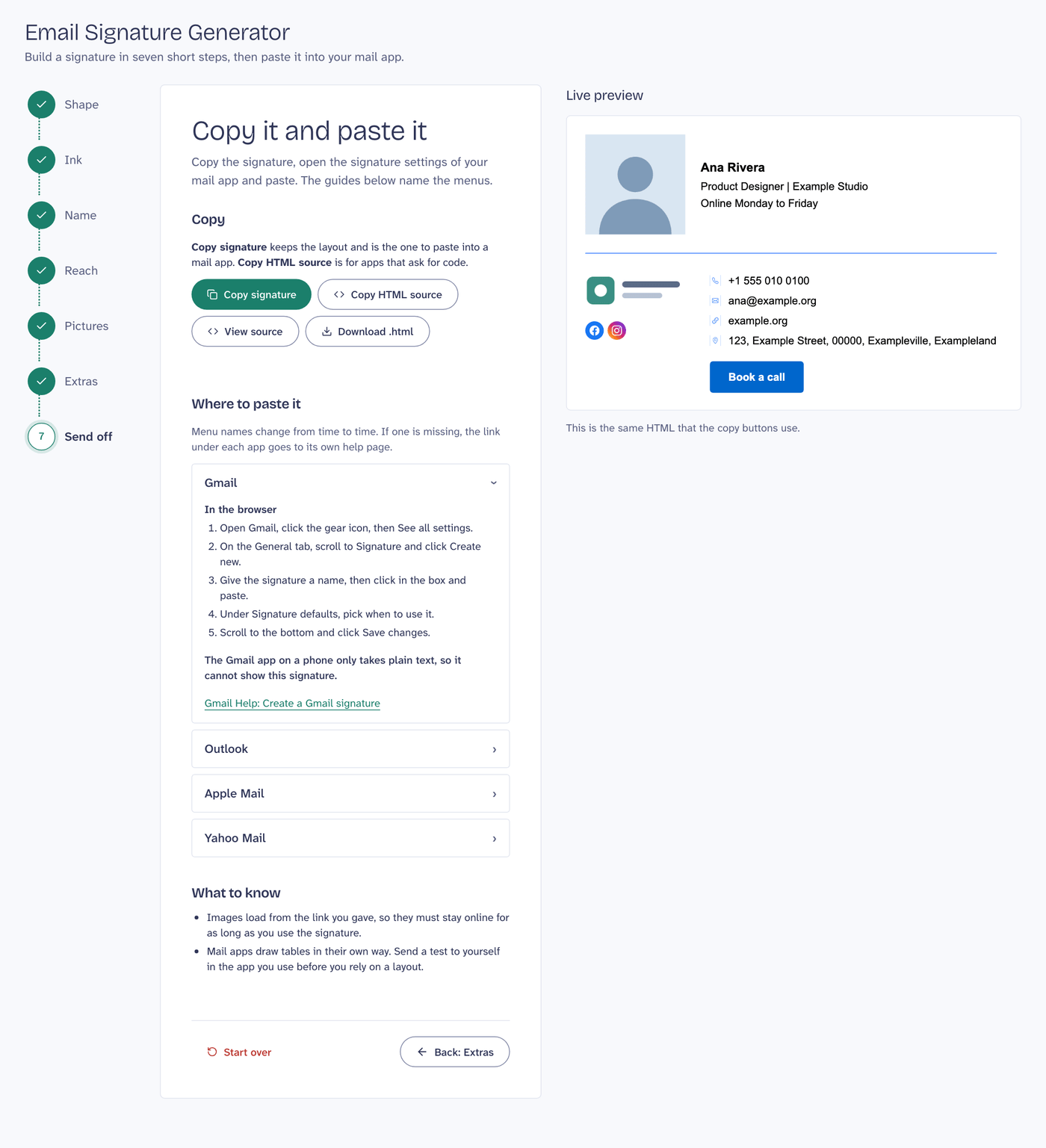
Menu names change from time to time, so the guides say what to look for, and the link under each one goes to the vendor's own page.
If you close the tab, your work is still there the next time, because it is saved in your browser. Start over clears it, after a question, and it cannot be undone.
Where this stops
- Not every mail client was tested. The output follows the usual rules for email, but I did not check it in every app. Send a test message to yourself in the app you use, before you rely on a layout.
- Outlook on the desktop shows round photos as squares. Pick a square photo if your readers use it.
- Images are not hosted. The links you paste must stay online as long as you use the signature, or the pictures will disappear from old emails.
- The Gmail app on a phone only takes plain text. It cannot show this signature.
- There are 12 social networks. Others are not offered.
- No screen reader was used to check it. The page has automated accessibility tests for roles, names, keyboard use and contrast, but I have not heard it with VoiceOver, NVDA, JAWS or TalkBack.
What I found when I checked it
Before I wrote this post I audited the page. Three findings were mine to fix, and each one taught me something. A field can have a name and still have the wrong one. The required star was read as part of the field name, "First name star". The field did have a name, so it looked fine. Now the star is hidden from the name, and a sentence under the intro explains it. Check what the name says, not only that it exists.
Landmarks need names that are used once. The preview had two landmarks with the same name, and the header was inside main, so the page had no banner. Read the names and roles the browser computes, because they are what a screen reader works from.
A declared dependency is not a used one. Eight packages were in package.json and imported nowhere. One of them, tailwindcss-animate, was never loaded, so the animate-in classes in the popover did nothing. I removed all eight. Search for the import before you trust a name in the list.
Try it
The generator is at miguelcolmenares.com/email-signature-generator. If a layout looks wrong in your mail app, tell me which app and which layout, at me@miguelcolmenares.com, and I will look at it.